

Take On Your Prop Firm Challenge With Confidence

The all-in-one MetaTrader 5 workstation that automates compliance, manages risk, and adapts to your prop firm's rules so you can focus on trading.

Not just another EA. A complete challenge workstation.

Gold (XAUUSD) Optimized 7 Pre-built Firm Profiles 5 Trading Modes
Want to trade with your personal account? Try PropOS Gold EngineDesigned for Personal Accounts. Get Gold Engine →

Everything You Need to Succeed

PropOS is not a black-box EA that promises profits. It's a workstation that gives you the tools to trade compliantly and effectively.

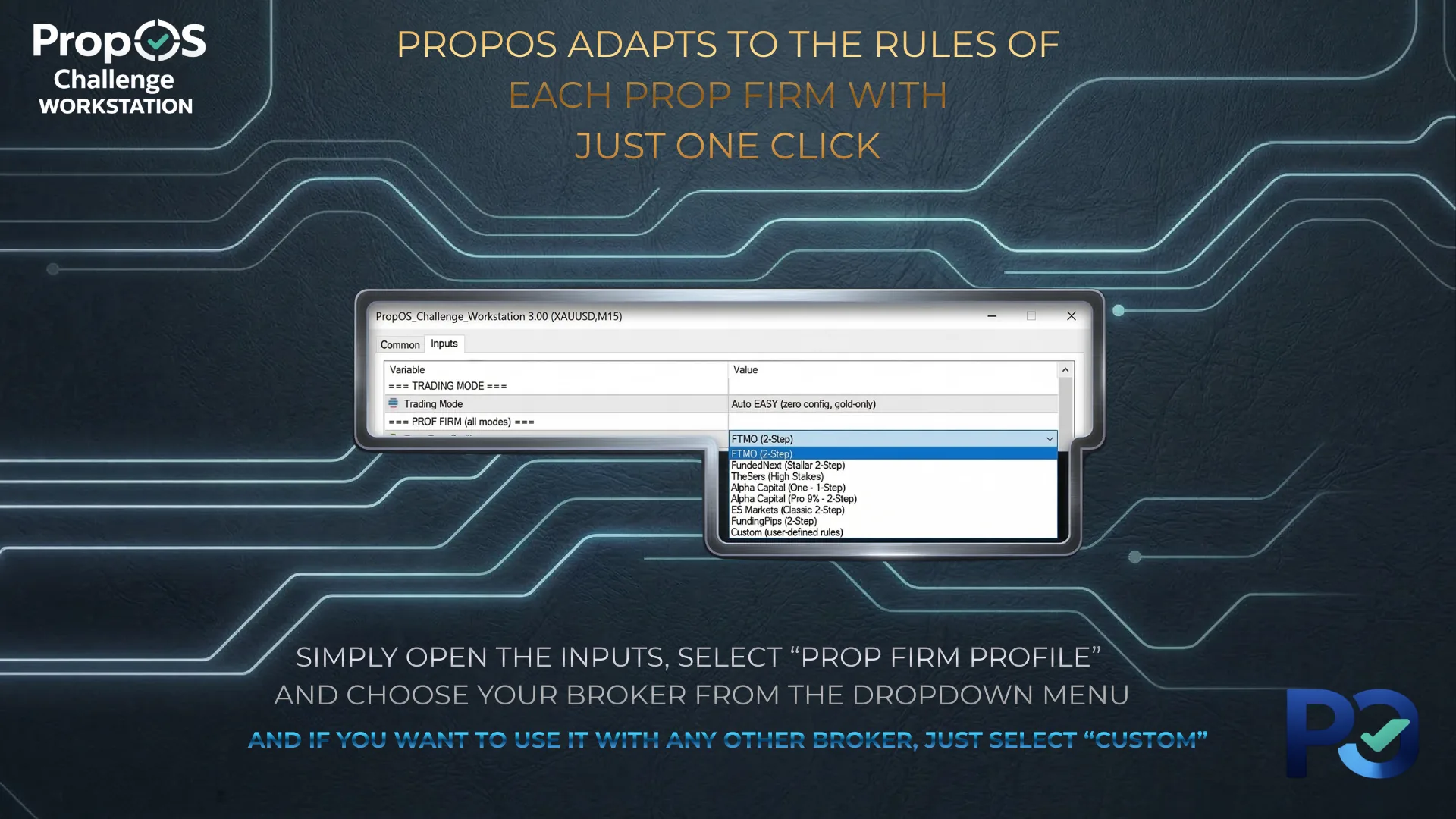
Select your firm: rules load automatically

FTMO FundedNext The5ers Alpha Capital (2 profiles) E8 Markets FundingPips + Custom

Real-Time Compliance Engine

Tracks daily and max drawdown in real time. Automatically locks trading before you breach limits. Supports static and trailing HWM calculation methods per firm. Includes TradeGuard: automatic protection against short-trade duration rules (Alpha Capital, E8 Markets).

5 Trading Modes

Auto EASY (plug & play), Auto PRO (custom strategy), Signal Assistant (strategy alerts + manual execution), Console (pure manual), and Smart Copy Router.

★ Invisible Bridge

Smart Copy Trading

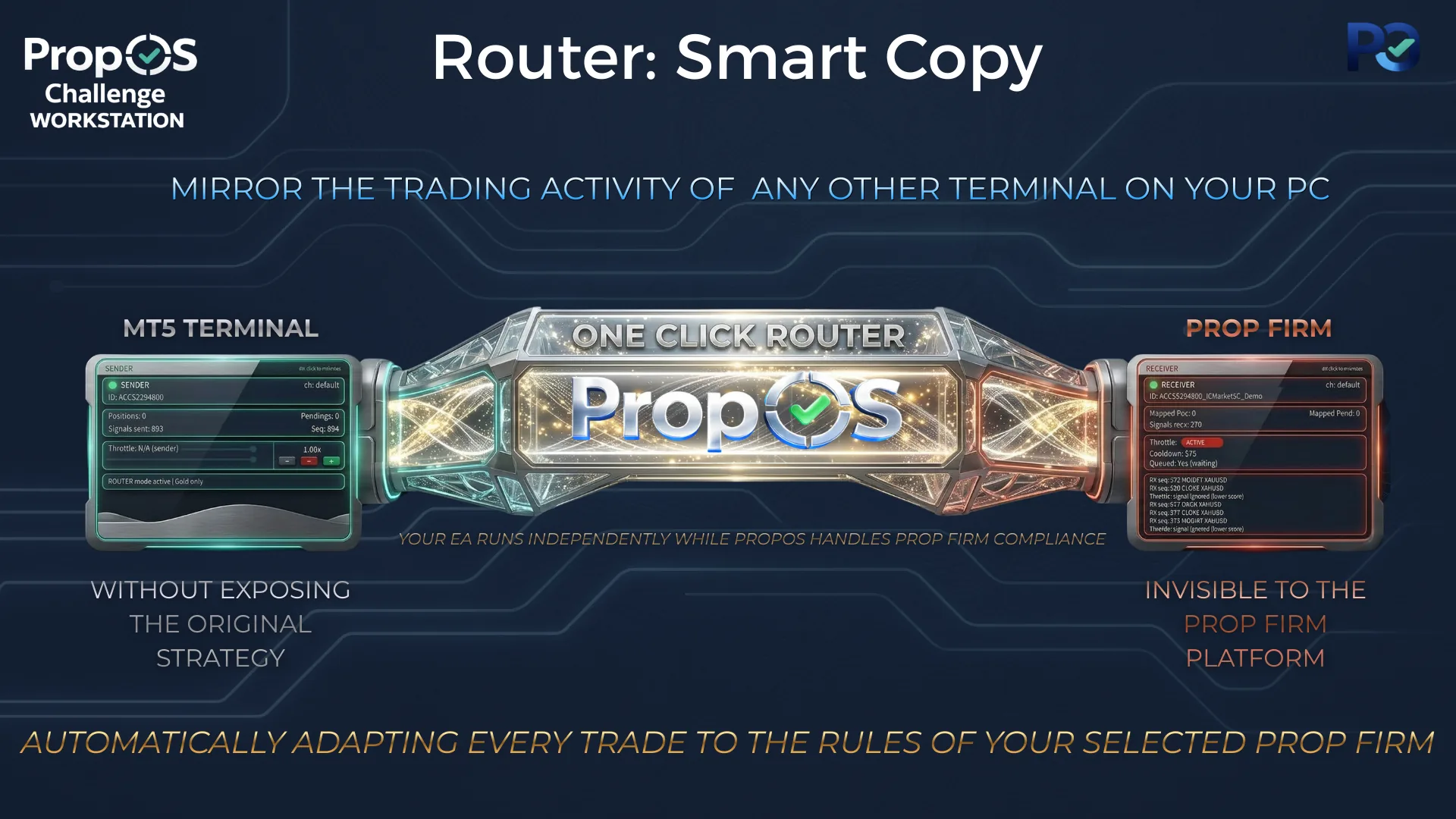
Bridge any MT5 EA to your prop firm account. The Router adapts every trade to meet challenge rules, invisible to the prop firm platform.

News Guard

Built-in economic calendar integration. Blocks new entries during high-impact news windows. Configurable pre/post windows per firm profile.

Phase & Target Tracking

Visual progress bar showing phase completion. Auto-Stop closes all trades when target is reached. Supports Phase 1, Phase 2, and post-funding modes.

Glassmorphism Dashboard

6 draggable, minimizable panels: Header, Account, Compliance (DD gauges), Execution, News, and Feed. Everything at a glance, nothing hidden.

Three Engines, One Goal

PropOS runs three proprietary strategy engines designed to work together. Used in Auto EASY, Auto PRO, and Signal Assistant modes.

Titan

The Architect — M15

The primary engine. Titan reads the market across multiple timeframes to establish directional conviction, then identifies high-probability entry zones where institutional order flow concentrates. Patient, precise, and built for consistency.

  • Multi-timeframe directional analysis
  • Institutional-grade zone detection
  • Confirmation-based entries with tight risk

Monster

The Predator — M1

Monster lives on the 1-minute chart, waiting for explosive price displacements that reveal where the big money is moving. When it detects a power move, it tracks the aftermath and strikes at the optimal re-entry point with aggressive sizing.

  • Explosive momentum detection
  • Smart re-entry with trend confirmation
  • High-reward potential on power moves

Raptor

The Hunter — M15

Raptor specializes in catching the moment price escapes a consolidation zone. It monitors key structural levels and strikes the instant a directional breakout is confirmed, riding the initial wave of momentum before the crowd arrives.

  • Structural breakout detection
  • Directional confirmation filter
  • Fast execution on early momentum

In Auto EASY, the three engines run simultaneously with optimized defaults. In Auto PRO, you can fine-tune, enable, or disable each engine individually (all three recommended). In Signal Assistant, they generate signals for you to approve or skip.

Each engine has independent risk, trailing stops, and trade identification. No external signals — everything runs locally on your chart.

Five Ways to Trade

Choose the mode that matches your style. Switch anytime from the inputs.

Auto Easy Mode
Beginner Friendly

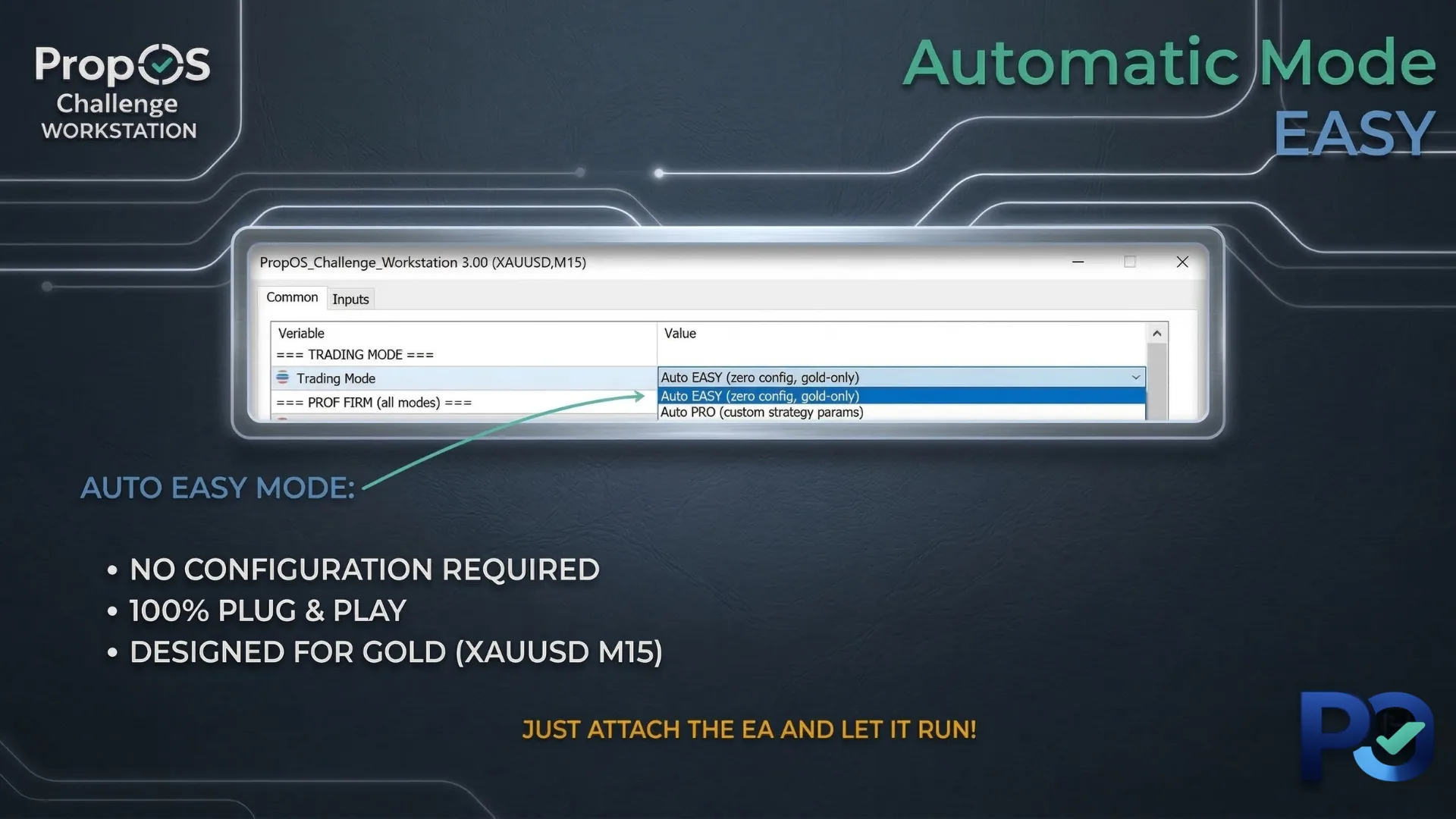
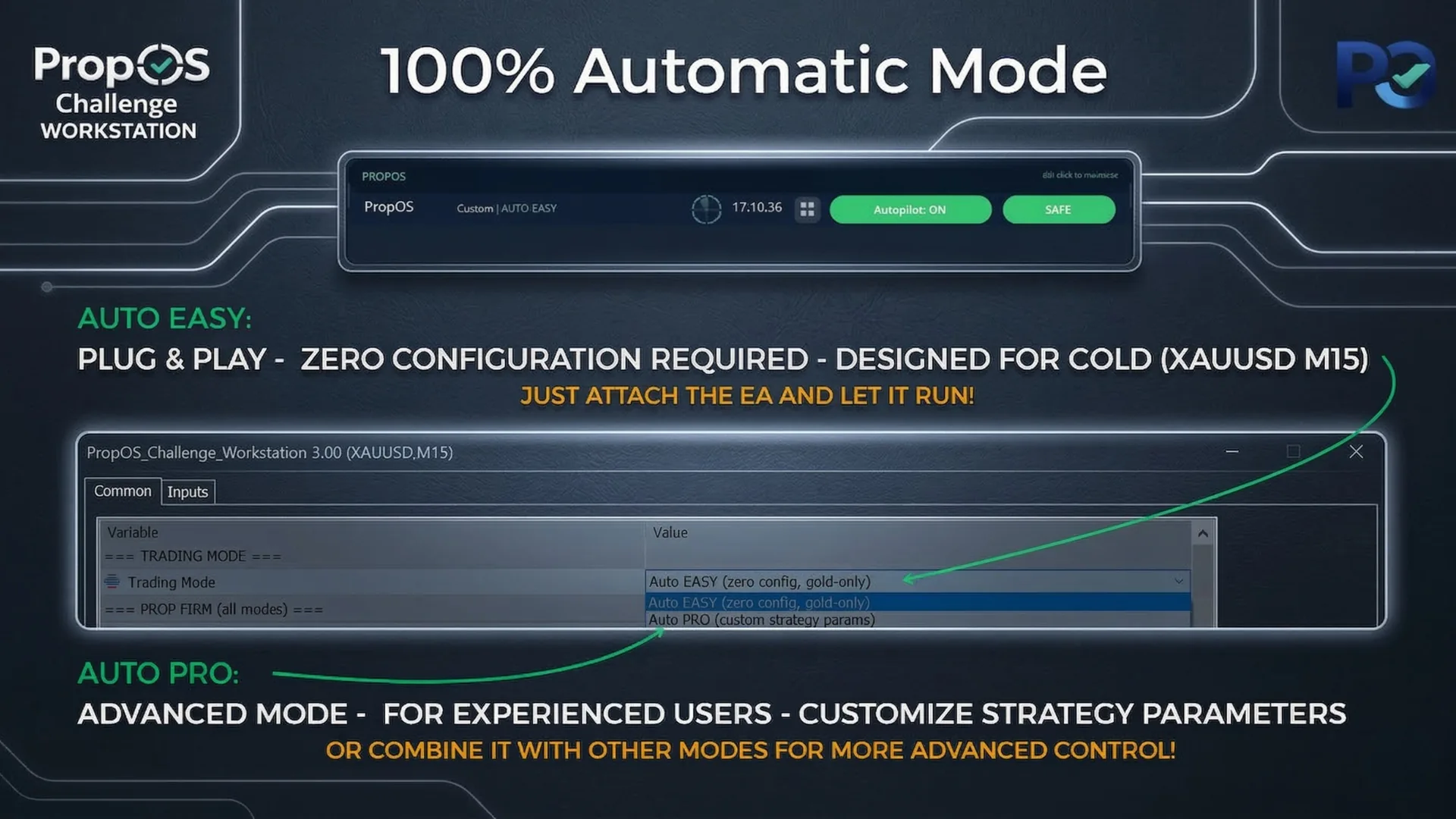
Auto EASY

Zero configuration required. Attach the EA to XAUUSD M15 and let it run. Three strategy engines work together with optimized defaults.

  • Plug & play: no settings to configure
  • 3 engines: Titan (trend), Monster (momentum), Raptor (breakout)
  • Automatic risk management and trailing stops
▷ Auto EASY Guide
Auto Pro Mode
Advanced

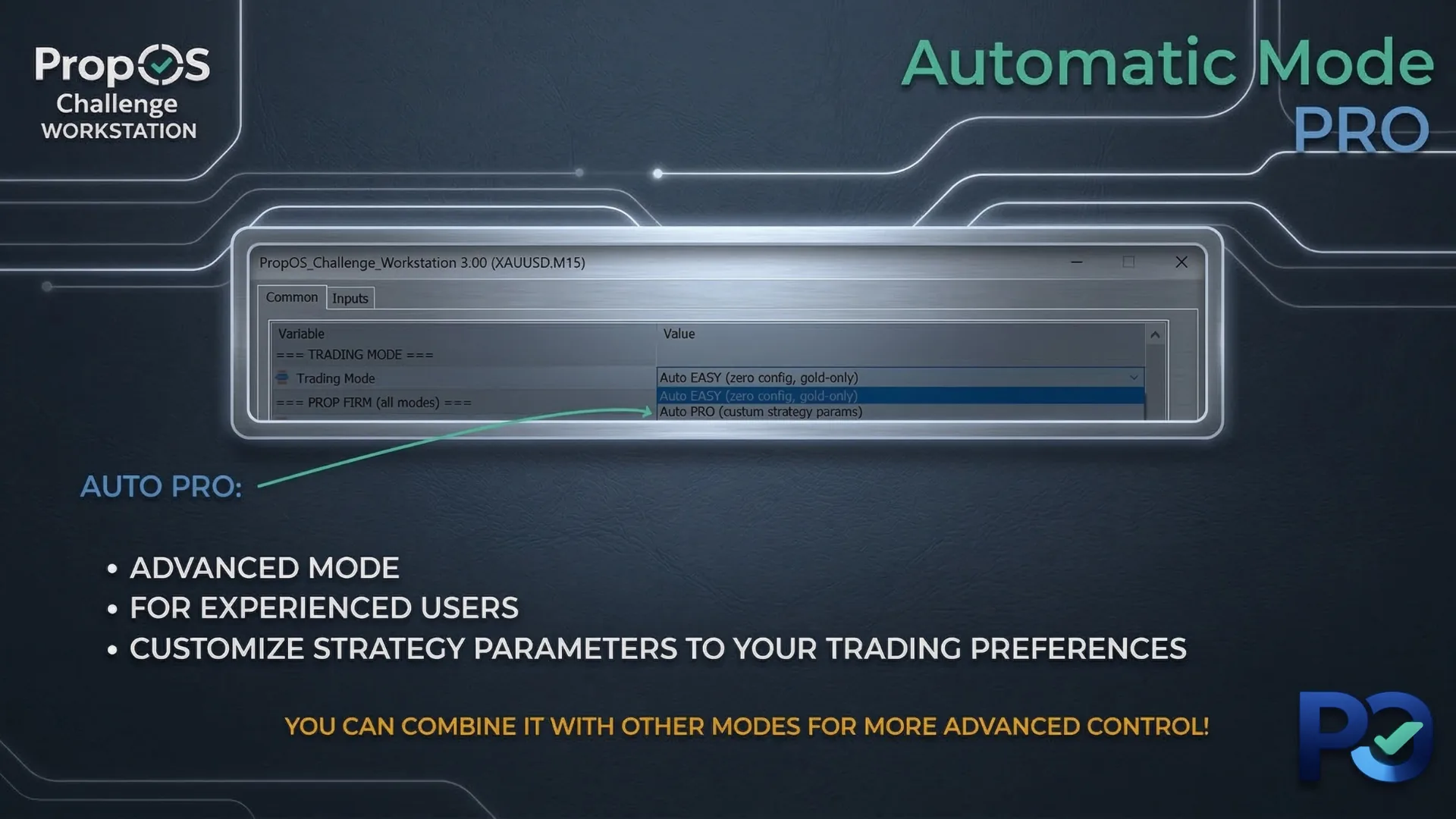
Auto PRO

Same three engines as EASY, but all parameters are exposed. Fine-tune each strategy independently: risk, trailing, cooldowns, and entry logic.

  • Full control over 40+ parameters across Titan, Monster & Raptor
  • Independent risk sizing, trailing stops, and RR per engine
  • Enable/disable each engine individually
▷ Auto PRO Guide
Signal Assistant Mode
Semi-Automatic

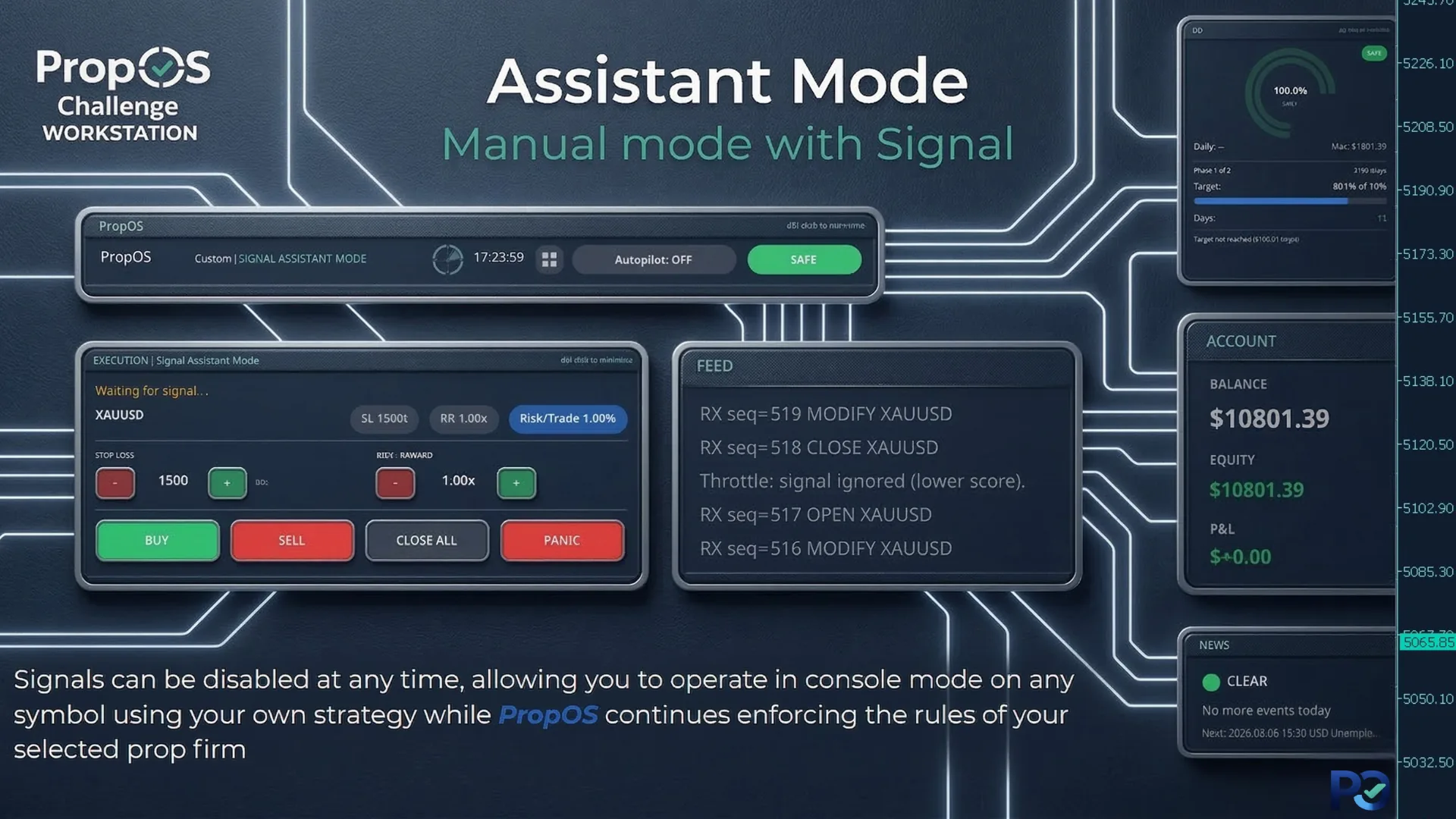
Signal Assistant

The strategy generates signals with exact SL/TP levels, but you decide whether to execute. Adjust the stop loss and take profit before placing the trade.

  • Visual signal banner with blinking alerts
  • Adjustable SL/TP prices with +/- controls
  • Push, email, sound, and popup notifications
▷ Signal Assistant Guide
Console Mode
Manual

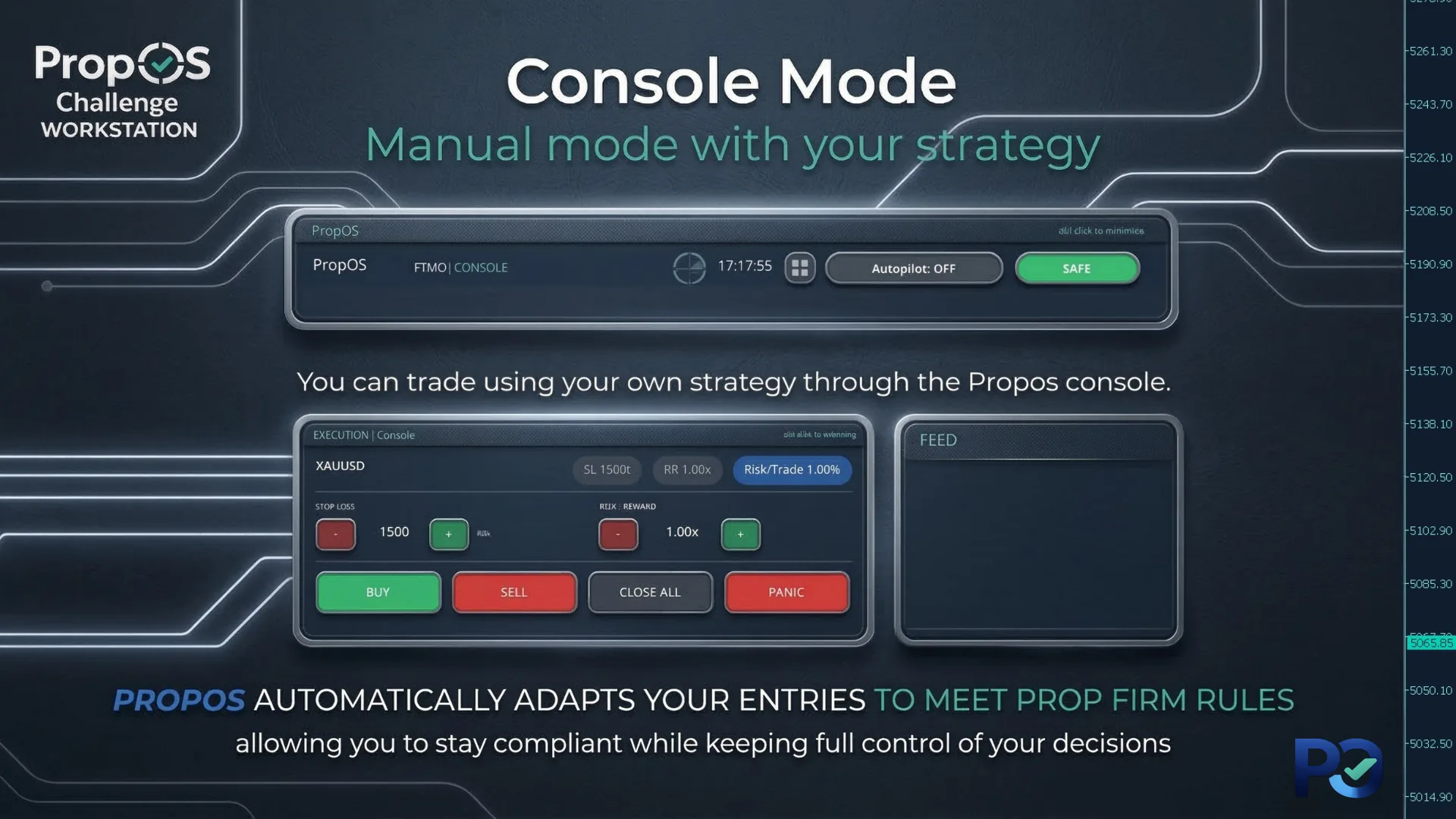
Console

Pure manual trading through the PropOS execution panel. Trade your own strategy on any symbol. PropOS handles compliance automatically.

  • BUY/SELL/CLOSE ALL/PANIC buttons
  • Automatic risk-based position sizing
  • All prop firm rules enforced in real time
▷ Console Guide
Router Smart Copy
★ Invisible Bridge
Copy Trading

Smart Copy Router

Mirror trades from any MT5 terminal to your prop firm account. PropOS acts as a bridge: the original bot stays invisible to the prop firm.

  • Mirror mode (full 1:1 copy) or Entry Only (local management)
  • Independent risk sizing, trailing, and RR on receiver
  • Symbol filter, fallback SL, orphan position recovery
▷ Router Setup Guide

The Bridge: How Smart Copy Works

Turn almost any MT5 bot into a prop-firm-compatible system.

★ Step-by-Step Router Setup Guide
Sender and Receiver

Sender & Receiver

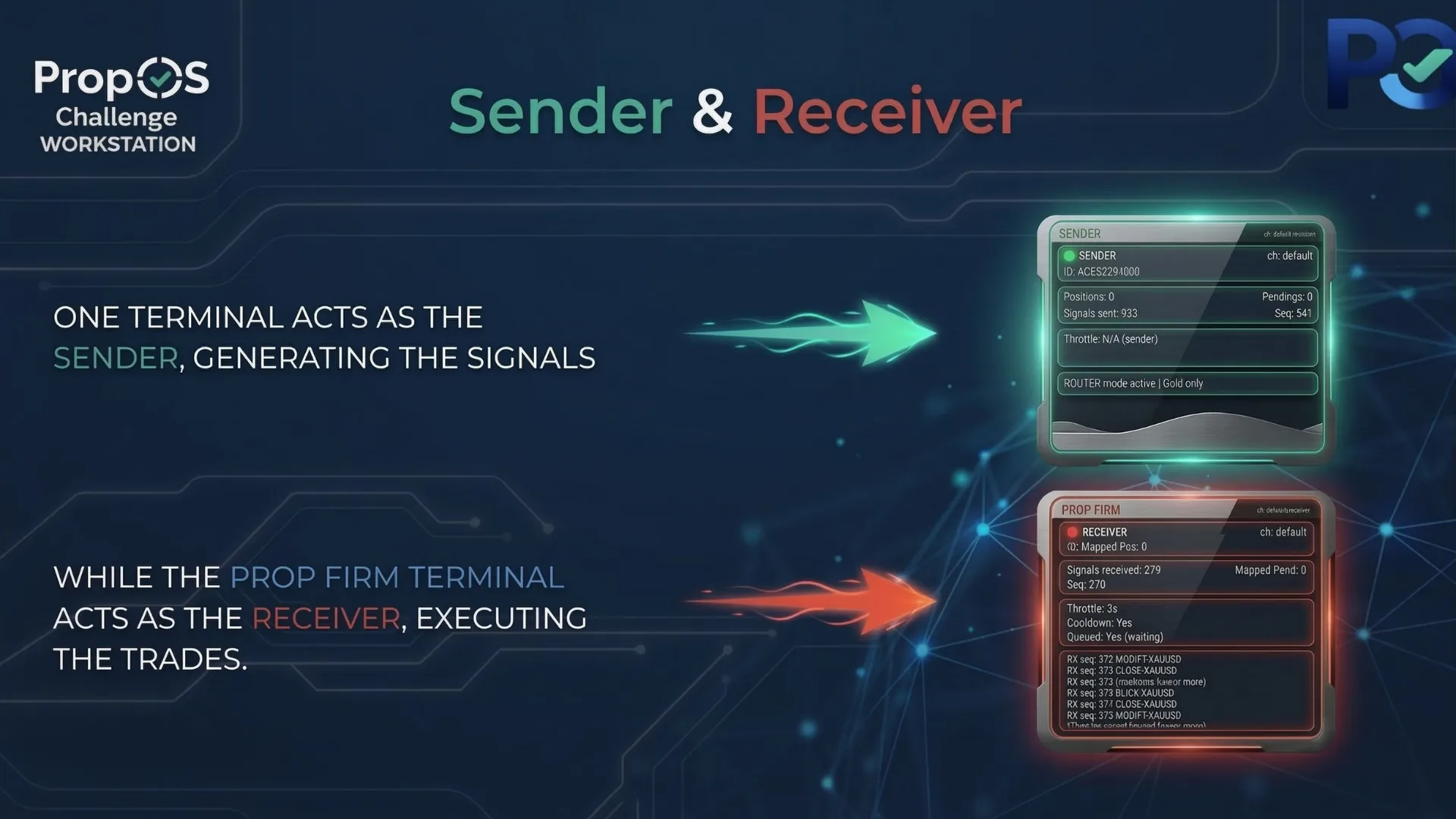
Attach PropOS as Sender on the terminal running your bot. On your prop firm terminal, attach it as Receiver. They communicate through a shared channel — no external servers, no latency.

The Bridge

The Invisible Bridge

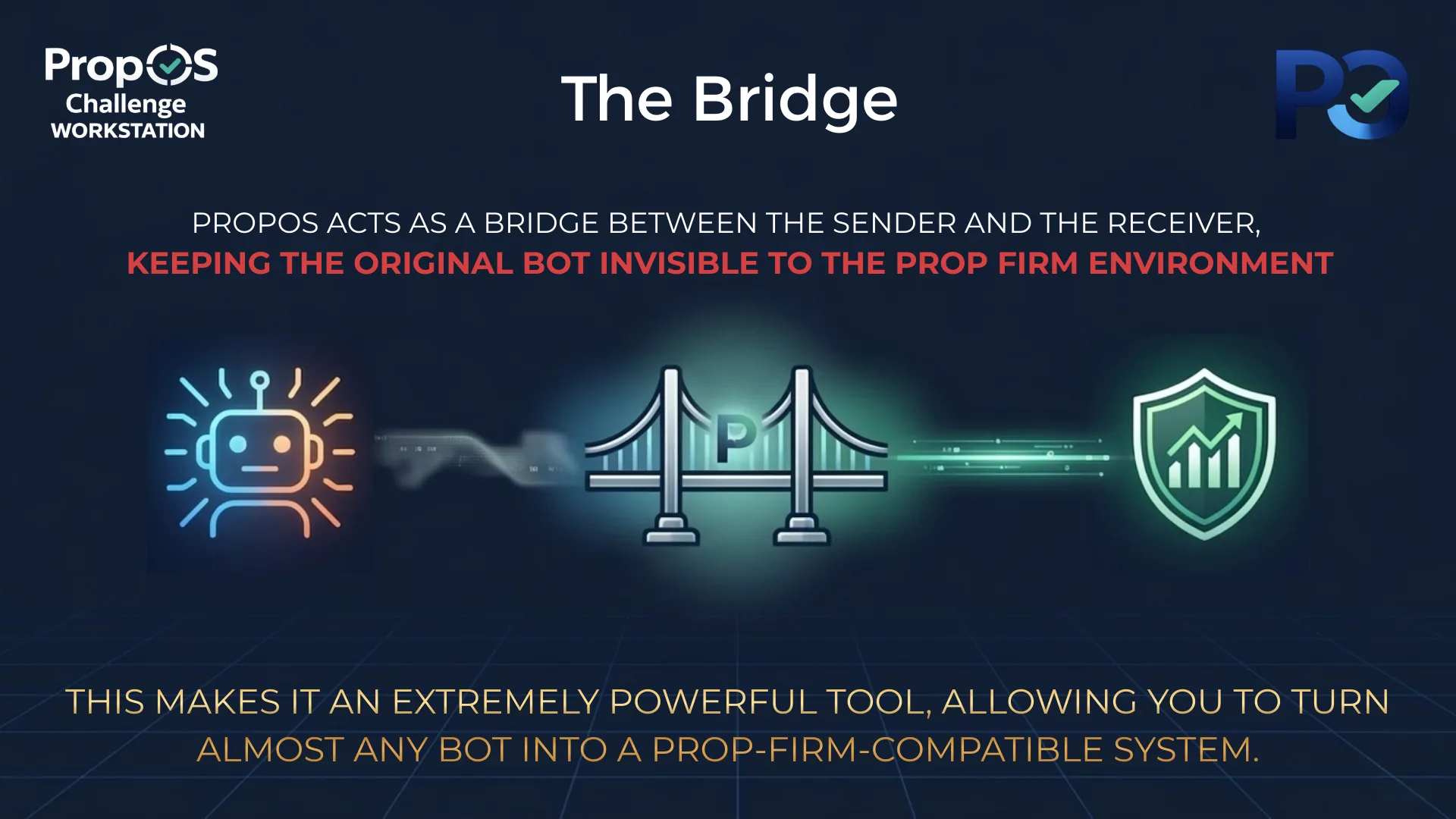
Every trade from the source EA is intercepted, adapted to your prop firm's rules (risk, SL, TP, trailing), and executed as if it were a manual trade. The prop firm sees only compliant activity.

Receiver Detail

Independent Risk Control

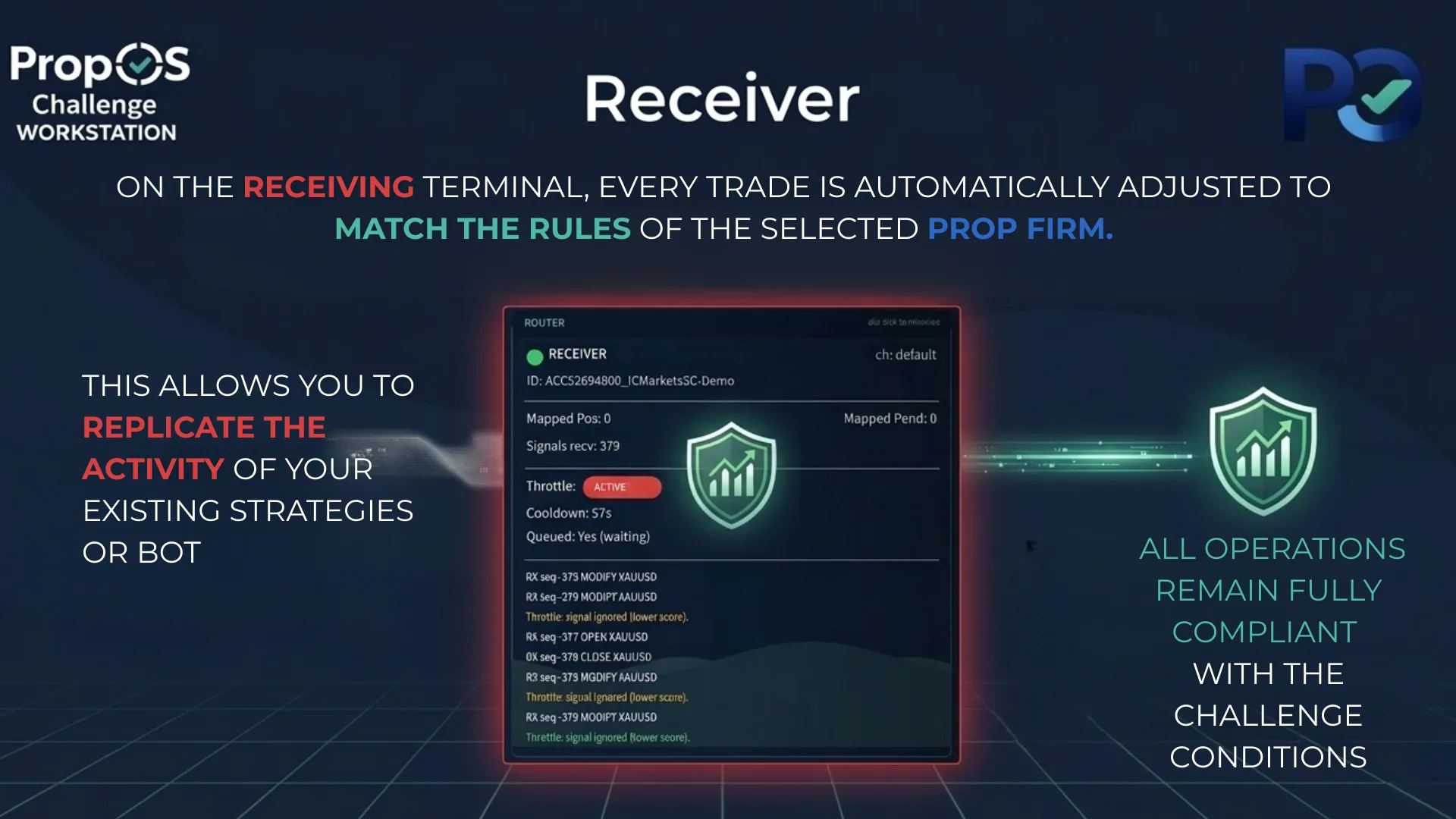
The Receiver has its own risk settings, trailing stop, and RR ratio. Even if the source bot uses aggressive sizing, PropOS recalculates everything to fit your challenge limits.

Why PropOS Is Different

1

Transparency

No hidden logic, no inflated claims. Every parameter is visible and documented. You know exactly what it does and why.

2

Workstation, Not a Bot

Most EAs promise automatic profits. PropOS gives you a complete environment to trade compliantly, whether automatic or manual.

3

Firm-Specific Rules

Pre-loaded profiles with exact DD limits, targets, news policies, trade duration rules, and min days for 7 prop firm profiles. Just select from a dropdown and you're set.

4

Built-In Safety

Lockdown on DD breach, daily profit cap, auto-stop at target, PANIC button with confirmation, news guard. Multiple layers of protection.

5

Adapt Any Strategy

With the Router, you can use any existing MT5 EA on your prop firm account. PropOS adapts risk, SL/TP, and compliance automatically.

6

Post-Funding Ready

After passing the challenge, toggle "Account Already Funded" to strip challenge rules while keeping DD protection active.

Frequently Asked Questions

Everything you need to know before getting started.

Does PropOS work with any MT5 broker?

Yes. PropOS runs on any MetaTrader 5 Windows desktop terminal. It comes with pre-loaded profiles for FTMO, FundedNext, The5ers, Alpha Capital, E8 Markets, and FundingPips. You can also create a fully custom profile for any other firm.

Is the Smart Copy Router detectable by prop firms?

No. The Router communicates through local files on your computer, not through any external server. Every trade placed on the prop firm account goes through a standard OrderSend, indistinguishable from manual trading. The prop firm sees only compliant, properly-sized trades.

▷ See the step-by-step Router Setup Guide

Do I need coding knowledge to use PropOS?

Not at all. Auto EASY mode is completely plug & play: attach the EA to a Gold chart, select your prop firm, and it trades automatically with optimized defaults. No settings to configure, no parameters to adjust.

What happens if I'm about to hit my drawdown limit?

PropOS monitors your drawdown in real time against your firm's exact limits. When you approach the threshold, it automatically closes all positions and locks trading to protect your account. You also have a PANIC button for instant manual lockdown.

Can I use PropOS after passing my challenge?

Absolutely. Toggle "Account Already Funded" and PropOS strips the challenge-specific rules (profit targets, time limits) while keeping drawdown protection, risk management, and all trading features active on your funded account.

What if MT5 closes, my VPS restarts, or my connection drops during a trade?

Your positions are safe. Every trade is placed with stop-loss and take-profit on the broker's server, so they remain protected even if MT5 is completely offline. When PropOS restarts, it automatically detects open positions by magic number, resumes trailing stop management on the next tick, and restores all compliance state (drawdown tracking, challenge progress, panic locks) from its persistence file. In Router mode, it also reconciles orphan positions by matching them back to sender signals. Nothing is lost ▷ the EA picks up exactly where it left off.

Can I use my own EA with the Router?

Yes. The Router's whole purpose is to bridge any MT5 EA to your prop firm account. Your EA runs on a separate terminal, and PropOS mirrors or adapts every trade to comply with your firm's rules. You keep your strategy, PropOS handles compliance.

Does PropOS use indicators or external signals?

No external signals or dependencies. PropOS runs three proprietary strategy engines — Titan, Monster, and Raptor — each targeting different market conditions on gold. The engines use a combination of price action analysis and lightweight technical filters to identify high-probability setups. Everything runs locally on your chart with zero external connections.

What about prop firms with trade duration rules (Alpha Capital, E8)?

PropOS includes TradeGuard, a compliance layer that monitors short-duration trades in real time. For Alpha Capital, it tracks cumulative profit from trades under 2 minutes and force-closes positions before reaching the firm's limit. For E8 Markets, it monitors the count of trades under 60 seconds. TradeGuard activates automatically when you select a firm that has these rules — no configuration needed. For custom firms, you can set your own duration thresholds.

Can I use PropOS on a regular broker account (not a prop firm)?

Yes. PropOS works on any MT5 account. Select the "Custom" firm profile and configure your own drawdown limits, profit targets, and risk rules however you want. You can use it in Auto mode to trade your personal account with built-in risk protection, or in Router mode to keep another EA in check — PropOS will enforce your custom rules on every trade. It's a powerful way to protect your own capital.

Ready to Start Your Challenge?

Get PropOS and trade with the confidence that your account is protected.

Get PropOS on MQL5 Market
Want to trade with your personal account? Try PropOS Gold EngineDesigned for Personal Accounts. Get Gold Engine →

Get PropOS & Start Trading

Purchase on MQL5 Market, follow the steps below, and your account is protected in under 10 minutes.

Step Zero

Get PropOS Challenge Workstation

Available exclusively on the official MQL5 Market. One purchase, unlimited use.

Instant download inside MT5
Lifetime license, no subscription
Free updates included
Get PropOS on MQL5 Market →

Already purchased? Scroll down and follow the setup guide.

Setup Guide

From installation to your first trade in under 10 minutes.

1

Requirements

Before installing PropOS, make sure you have:

  • A prop firm challenge account (or demo account for testing)
  • A Windows VPS for stable 24/5 operation (e.g. ForexVPS or similar reliable provider)
  • MetaTrader 5 installed on the VPS (download from your broker's website)
Why a VPS? PropOS needs to run uninterrupted 24 hours a day, 5 days a week to monitor your account and execute trades. A VPS ensures stable operation even when your personal computer is off. While you can run PropOS on your local PC, a VPS is strongly recommended for reliability. Rent one, install MetaTrader 5 from your broker, and set up PropOS there.
2

Installation

PropOS is available exclusively on the MQL5 Market. After purchasing:

  • 1. Open MetaTrader 5 and go to the Market tab (bottom panel) or Tools → Market.
  • 2. Click on Purchased to see your products.
  • 3. Find PropOS Challenge Workstation and click Install.
  • 4. PropOS will appear automatically in the Navigator panel under Expert Advisors.

No manual file copying required — the MQL5 Market handles everything.

Important — enable Algo Trading in two places:
1. Global setting: Go to Tools → Options → Expert Advisors → check "Allow Algorithmic Trading".
2. Per-EA setting: When you attach PropOS to the chart, in the properties dialog go to the Common tab and check "Allow Algo Trading". This checkbox must be ticked or the EA will not be able to open or close trades.
3

Attach to Chart

Open a XAUUSD M15 chart. Drag PropOS from the Navigator panel onto the chart.

In the dialog that appears, go to the Inputs tab. This is where you configure PropOS.

Prop Firm Selection
Tip: For your first time, just set the Trading Mode and Prop Firm Profile, then click OK. Everything else uses sensible defaults.
4

Choose Your Mode

Select a Trading Mode based on your experience level and needs:

ModeBest ForStrategyExecution
Auto EASYBeginnersTitan + Monster + Raptor (defaults)Automatic
Auto PROExperienced tradersTitan + Monster + Raptor (customizable)Automatic
Signal AssistantTraders who want alertsTitan + Monster + Raptor (signals)Semi-automatic (you approve)
ConsoleManual tradesYour own strategyManual
RouterCopy from another EAExternalAutomatic (copy)

Step-by-step guides for each mode:

▷ Auto EASY Guide — zero config, plug & play

▷ Auto PRO Guide — all strategy parameters explained

▷ Signal Assistant Guide — signals + manual execution

▷ Console Guide — manual trading with compliance

▷ Router Setup Guide — smart copy trading step-by-step

Trading Modes Overview
5

Select Your Prop Firm

From the Prop Firm Profile dropdown, select your firm. PropOS will automatically load the correct rules:

  • Daily DD limit, Max DD limit (static or trailing)
  • Profit targets for Phase 1 and Phase 2
  • Minimum trading days and profitable days
  • News blocking policy and windows
  • Trade duration rules (TradeGuard for Alpha Capital, E8)
Firm Selection Dropdown
Custom firm: If your prop firm isn't listed, select "Custom" and configure all rules manually in the Custom Firm section of the inputs. You will need to know your firm's specific rules (daily DD, max DD, profit targets, min trading days, news restrictions, trade duration limits, etc.) to set them correctly.

If you want to use PropOS on a personal account (not a prop firm challenge), you can also use the Custom profile. Contact us and we'll suggest configuration adjustments to relax drawdown limits and optimize for higher monthly returns instead of challenge compliance.
6

Set Your Phase

Set Current Phase to 1 or 2 depending on where you are in your challenge. The compliance engine uses this to load the correct profit target.

If you've already passed and are trading a funded account, enable Account Already Funded. This removes challenge targets but keeps all drawdown protection active.

7

Understanding the Dashboard

Once running, PropOS displays 6 glassmorphism panels on your chart:

  • Header: Firm name, current mode, time, autopilot status
  • Account: Balance, equity, and P&L
  • Compliance (DD): Dual gauge showing daily and max drawdown usage, phase progress
  • Execution: Trade controls (in manual/signal modes) or auto-minimized in auto modes
  • News: Upcoming high-impact events and blocking status
  • Feed: Live activity log (trades, signals, router events)

All panels are draggable (grab the title bar) and minimizable (double-click the title bar). Positions persist across restarts.

8

You're Ready

That's it. PropOS is now monitoring your account, enforcing compliance, and either trading automatically or waiting for your input depending on the mode you selected.

Next step: Check the full Documentation for detailed explanations of every parameter and advanced configurations.

What to Expect from PropOS

PropOS is designed with one clear priority: protect the account first, reach the target second. The compliance engine ensures your drawdown never breaches your firm's limits, and Auto-Stop locks trading the moment your profit target is reached. This means PropOS won't chase oversized returns — it aims for the exact profit your firm requires (typically 8-10%) while keeping risk under strict control.

In strong market months, PropOS can reach the challenge target in as little as 10-15 days. In difficult months with choppy or adverse conditions, it will trade patiently, protect capital, and grow the account gradually — even if it takes longer. Not every month is a winning month, and PropOS is built for that reality. It prioritizes account survival over speed, knowing that the opportunity will come.

Once the profit target is reached, your account goes into review with the prop firm and you're on your way to getting funded. PropOS doesn't need to make 30% — it needs to make exactly what your firm asks for, without ever putting the account at risk.

Note: Past performance does not guarantee future results. Market conditions vary and no system can guarantee passing a challenge. PropOS maximizes your chances by enforcing strict compliance and disciplined risk management.

Get PropOS on MQL5 Market
Want to trade with your personal account? Try PropOS Gold EngineDesigned for Personal Accounts. Get Gold Engine →

Documentation

Complete reference for all configurable parameters.

Overview

PropOS Challenge Workstation is configured entirely through MT5 input parameters. Open the EA's properties (right-click on chart → Expert Advisors → Properties → Inputs tab) to access all settings. Parameters are grouped into logical sections described below.

Note: In Auto EASY mode, all three strategy engines (Titan, Monster, Raptor) run with optimized defaults — strategy parameters are ignored. Strategy parameters only apply to Auto PRO and Signal Assistant modes.

Trading Mode

The single most important setting. Determines how PropOS operates.

Trading Mode
ParameterTypeDefaultDescription
Trading ModeenumAuto EASYAuto EASY — Zero config, gold-only, plug & play. All strategy parameters hardcoded with optimized defaults.
Auto PRO — Same strategy, all parameters exposed for customization.
Signal Assistant — Strategy generates signals, you decide to execute or skip.
Console — Pure manual trading through the PropOS execution panel. No strategy.
Router — Smart Copy Trading mode. Sender broadcasts, Receiver copies and adapts.

Prop Firm (All Modes)

These settings apply regardless of which trading mode you choose.

Firm & Phase
ParameterTypeDefaultDescription
Prop Firm ProfileenumFTMOSelect your prop firm to automatically load 10+ challenge rules — including DD limits, profit targets, news blocking policy, trade duration rules, minimum trading days, and best day limits. Each profile is pre-configured to match the firm's exact requirements, so you don't need to set anything manually. If your firm isn't listed or you need custom rules, select Custom and configure each rule individually. Available: FTMO, FundedNext, The5ers, Alpha Capital One (1-Step), Alpha Capital Pro (2-Step), E8 Markets, FundingPips, Custom.
Current Phaseint1Which phase of the challenge you are currently in. Two-step challenges (like FTMO or Alpha Capital Pro) have different profit targets per phase — Phase 1 is typically harder (e.g., 10%), Phase 2 is lower (e.g., 5%). For one-step challenges like Alpha Capital One, always keep this at 1. Changing this mid-challenge reloads the corresponding profit target and adjusts compliance tracking accordingly.
Account Already FundedboolfalseEnable this after passing the challenge or when trading a funded account. Specifically removes profit targets, minimum trading days, and profitable days requirements — rules that only apply during the challenge phase. Drawdown protection (both daily and max DD), news blocking rules, and all other safety features remain fully active. Also useful if you want to use PropOS purely as a risk management tool without challenge-specific constraints.
DD Safety Buffer %double0.15Creates a caution zone before your firm's hard drawdown limit. For example, at 0.15% with a 5% daily DD limit, PropOS triggers CAUTION at 4.85% — disabling autopilot, canceling all pending orders, and giving you breathing room to avoid an accidental breach. Increase this if you want a wider safety net (e.g., 0.30-0.50%). Set to 0 to use the full limit with no buffer, though this is not recommended during live challenges.
News Filter
How news blocking works: Some prop firms prohibit trading during high-impact news events. If your selected firm profile includes a news restriction, PropOS will automatically block trading during those windows — even if this setting is set to false. This external News Filter is an additional, optional layer for traders who want to avoid news volatility by choice, even when their firm allows it. Enable it if you prefer to stay out of the market around major economic releases regardless of your firm's rules.
ParameterTypeDefaultDescription
News FilterboolfalseEnable to voluntarily block new entries during high-impact economic events. Uses the MT5 economic calendar (real events, not hardcoded times). This is independent from firm-specific news rules, which are always enforced automatically.
News Block Minutes Beforeint30How many minutes before a news event to start blocking new trades.
News Block Minutes Afterint30How many minutes after a news event to resume allowing new trades.

Risk & Execution

Core execution and safety settings that apply across all trading modes.

Execution Settings
ParameterTypeDefaultDescription
Gold Stop Loss (ticks)int1500Default stop loss distance for gold, where 1500 ticks = $15.00. Only used in Console and Signal modes, where you place trades manually and need a predefined SL distance. In Auto Easy and Auto Pro modes, each engine calculates SL dynamically based on current market structure, so this value is ignored. Also serves as the fallback SL for Router mode when the sender's signal has no stop loss.
FX Stop Loss (ticks)int120Default stop loss distance for forex pairs, where 120 ticks on EURUSD = 12 pips. Used in Console mode for manual trade placement and as the fallback SL in Router mode when the sender's signal has no stop loss. Adjust based on the pairs you trade — major pairs like EURUSD work well at 120, while more volatile pairs like GBPJPY may need 150-200.
Max Trades Per Dayint15Maximum trades per day combined across all three engines (Titan, Monster, and Raptor). Once this limit is reached, no new entries are allowed until the next trading day — but existing open positions are not affected. Prevents overtrading on volatile days when multiple engines may be firing signals. The default of 15 is generous for most setups; lower to 8-10 for more conservative trading.
Safety Features
ParameterTypeDefaultDescription
Daily Profit CapboolfalseWhen enabled, blocks all new entries once your daily profit reaches the specified percentage. Protects against giving back gains on a winning day. Existing open positions are NOT closed — only new entries are blocked. Resets automatically at midnight broker time. Useful for firms with consistency rules, or as personal discipline to lock in a green day and walk away.
Daily Profit Cap %double2.0The daily profit threshold that triggers the cap. For example, 2.0% on a $10,000 account means new entries are blocked once you reach $200 in daily profit. Adjust based on your firm's consistency rules or personal preference — aggressive traders might set 3-4%, conservative traders 1-1.5%. Works in conjunction with the Daily Profit Cap toggle above.
Auto-StopbooltrueCritical safety feature for challenges. When your equity reaches the phase profit target, ALL open positions are closed immediately and trading is locked for the remainder of the test. This prevents giving back profits after you've already passed. Strongly recommended to keep enabled during any active challenge — many traders fail by continuing to trade after hitting their target.
Auto-Stop Buffer %double0.0Extra cushion above the profit target before Auto-Stop triggers. At 0, it triggers exactly when you hit the target. At 0.5%, on a 10% target, Auto-Stop triggers at 10.5% — giving you a small margin to ensure you've clearly passed before locking. Use a small buffer (0.25-0.50%) if you want to be absolutely sure you've passed, or keep at 0 for immediate lockdown at the target.

Titan Strategy

Titan is the primary M15 engine and operates exclusively on the BUY side. It reads market structure across multiple timeframes to establish bullish conviction, then identifies high-probability long entry zones. Patient and precise — built for consistency.

Titan Core
ParameterTypeDefaultDescription
Enable Titan StrategybooltrueWhen disabled, Titan generates no signals and opens no trades. Monster and Raptor continue operating independently. Disable this if you want to isolate the other engines during testing, or if market conditions favor Monster or Raptor setups over Titan's approach.
Titan Magic Numberint202500Unique identifier so PropOS can track which positions belong to Titan. Only change this if running multiple PropOS instances on the same account — each instance needs different magic numbers to avoid conflicts. Must be different from Monster (202501) and Raptor (202502).
Risk Per Trade %double1.7Percentage of current balance risked per Titan trade. At 1.7% with a $10,000 account and a 150-tick SL on gold, position size would be approximately 0.11 lots. Higher values mean larger positions but more exposure per trade. Keep between 1-2% for challenge accounts; go lower (0.5-1%) if you prefer conservative risk management.
Reward : Risk Ratiodouble1.2Take profit distance as a multiple of the stop loss. At 1.2 RR with a 150-tick SL, TP is placed 180 ticks away. Higher RR means larger winners but a lower win rate since price must travel further. Lower RR means more consistent wins but smaller gains per trade. The 1.2 default balances win rate and reward effectively.
Max Simultaneous Tradesint1How many Titan positions can be open at the same time. At 1, a new signal is ignored if Titan already has an open position. Increase if you want Titan to scale into multiple setups simultaneously, but be aware this multiplies your total risk exposure. For challenge accounts, 1 is the safest choice.
Cooldown After Lossint3After a losing Titan trade, the engine pauses for this many M15 bars before allowing a new entry. At 3 bars = 45 minutes cooldown. Prevents revenge trading after a stop-out by forcing a waiting period. Set to 0 to allow immediate re-entry after a loss, though this is not recommended during challenges.
Titan Entry
ParameterTypeDefaultDescription
Trend Detection Sensitivitydouble0.30Controls how strong the directional conviction must be before Titan considers trading. At 0.30, moderate trends qualify. Lower values (0.15-0.20) detect trends earlier and generate more signals, but with lower conviction. Higher values (0.40-0.60) require very strong trends, resulting in fewer but higher-quality setups. If you are getting too many losing trades, try increasing this value.
S/R Precisionint3How many bars on each side are required to confirm a key level. At 3, a level needs 3 bars of supporting price action on each side to qualify. Range 1-5. Higher values find fewer but more historically significant levels. Lower values detect more levels but include weaker ones. If Titan is not finding enough setups, try lowering to 2.
Zone Grouping Distancedouble0.50When two key levels are very close together, they merge into one zone. Measured as a fraction of ATR. At 0.50, levels within half an ATR of each other merge. Increase if you see too many overlapping zones cluttering the analysis. Decrease if zones are merging that should remain separate.
Min Zone Scoredouble5.0Quality threshold for entry zones. Zones are scored based on multiple confluence factors. At 5.0, only zones with decent confluence qualify for entries. Increase to 7-8 for fewer but premium setups. Decrease to 3-4 if Titan is too selective and you want more trading activity.
Entry Confirmation Strengthdouble50.0Minimum candle body as a percentage of total range to confirm an entry. At 50%, the candle body must be at least half its total range, filtering out doji and indecisive candles. Increase if you are getting false entries on weak candles. Decrease if you are missing entries due to wick-heavy candles that still show valid direction.
Retest Wait Timeint20After a signal is generated, how many M15 bars Titan waits for confirmation. At 20 bars = 5 hours. If confirmation does not occur within this window, the signal expires and is discarded. Increase for more patient entries (but signals may expire more often). Decrease for faster entries with less confirmation.
Entry Zone Widthdouble0.15How precisely price must approach a level for confirmation. Measured as an ATR fraction. At 0.15, price must come within 15% of ATR of the level. Tighter values require more precise approaches but may miss entries. Wider values allow looser entries but increase the risk of false signals.
Asian Session Extra Confirmationint1Additional confirmation candles required during the Asian session (typically 23:00-07:00 GMT). At 1, one extra candle of confirmation is needed beyond normal requirements. The Asian session has lower volatility and more false signals, so extra confirmation reduces noise. Set to 0 to use the same entry criteria as other sessions.
Titan Stop Loss
ParameterTypeDefaultDescription
SL Bufferdouble1.0Extra distance added beyond the entry zone for stop loss placement. Measured as an ATR fraction. At 1.0, the SL is placed one full ATR beyond the zone. Increase if you are getting stopped out frequently by normal price noise around zones. Decrease for tighter stops that are more risk-efficient but more prone to stop hunts.
Max SL Distancedouble6.0Maximum allowed stop loss as an ATR multiple. At 6.0, any signal requiring a stop loss larger than 6x ATR is rejected entirely. Protects against oversized risk on wide setups. Lower values reject more signals but keep risk tight. On gold, 6x ATR is typically around $20-25 depending on volatility.
Min SL Distancedouble15.0Absolute minimum stop loss in price points. At 15.0, no Titan trade can have a stop loss smaller than $15 on gold. Prevents unrealistically tight stops that would get stopped out by normal spread and slippage. Increase if your broker has wider spreads or if you notice frequent stop-outs on very tight setups.
ATR TimeframeenumM15Timeframe used for ATR (volatility) calculations throughout Titan. Should match your chart timeframe (M15 by default). Changing this to a higher timeframe smooths the volatility reading but makes it less responsive to current conditions. Generally no need to change unless you have a specific reason.
ATR Multiplierdouble2.0Global multiplier applied to ATR values throughout Titan's calculations. At 2.0, all ATR-based distances (zones, stops, entries) are scaled accordingly. Increase for wider stops and entry zones in volatile markets. Decrease for tighter parameters in calm, ranging markets.
Titan Trailing
ParameterTypeDefaultDescription
Trailing Stop EnabledbooltrueEnables a dynamic trailing stop that progressively locks in profit as price moves toward TP. When disabled, Titan positions only close at SL or TP. Recommended to keep enabled — it protects partial profits on trades that reverse before hitting the full take profit target.
Trailing Activationint30Price must reach this percentage of the distance to TP before trailing starts. At 30%, if TP is 180 ticks away, trailing activates after 54 ticks of profit. Lower values start trailing earlier (more protection, but may lock in small profits too soon). Higher values let the trade breathe longer before trailing kicks in.
Trailing Lockint50When trailing activates, this percentage of the current profit is locked in by moving the SL. At 50%, if the trade is 60 ticks in profit when trailing activates, SL moves to lock 30 ticks. Higher values lock more profit but give the trade less room to fluctuate before hitting the trailing stop.
Trailing Stepint10Minimum SL improvement (as percentage of TP distance) required before the trailing updates again. At 10% with a 180-tick TP, the SL must improve by at least 18 ticks to trigger an update. Prevents excessive order modifications that could slow execution.

Monster Strategy

Monster operates exclusively on the SELL side, hunting for explosive bearish price movements that reveal where institutional money is flowing. When it detects a power move, it tracks the aftermath and strikes at the optimal short re-entry point.

Chart timeframe: Monster analyzes M1 data internally, but you do not need to change your chart timeframe. Keep your chart on M15 as normal — Monster accesses the M1 data automatically in the background. No configuration needed.
Monster Core
ParameterTypeDefaultDescription
Enable Monster StrategybooltrueWhen disabled, Monster generates no signals. Titan and Raptor continue independently. Monster operates on M1, making it the most active engine — disabling it significantly reduces total trade frequency. Disable if you prefer fewer, longer-timeframe setups only.
Monster Magic Numberint202501Unique identifier for Monster positions. Default 202501. Only change if running multiple PropOS instances on the same account. Must be different from Titan (202500) and Raptor (202502) to avoid conflicts.
Risk Per Trade %double2.0At 2.0%, Monster risks more per trade than Titan (1.7%). This is intentional — Monster targets high-conviction momentum setups with tighter stops, so the higher risk percentage compensates for the tighter stop distance. The actual dollar risk per trade remains similar. Adjust based on your comfort level and overall risk tolerance.
Reward : Risk Ratiodouble1.0At 1.0, TP equals SL distance. Monster trades aim for quick, decisive moves rather than extended runners. You can increase this for larger targets, but Monster's strength is catching fast momentum — higher RR may result in more trades that reverse before hitting TP.
Cooldown After Lossint0M1 bars to wait after a losing Monster trade. At 0 (default), Monster can re-enter immediately. Monster is designed to be reactive to momentum, so cooldown is disabled by default. Enable (e.g., 30-60 bars = 30-60 minutes) if you want to reduce trade frequency after losses.
Monster Detection
ParameterTypeDefaultDescription
Monster Size Multiplierdouble4.0How extreme a price movement must be relative to the recent average to qualify. At 4.0, the move must be 4x the recent average body size. This is Monster's primary filter — it defines what qualifies as a notable move. Increase to 5-6 for only the most explosive moves (fewer signals, higher conviction). Decrease to 3 for more setups but lower selectivity.
Average Body Lookbackint20Number of recent M1 bars used to calculate the average body size that the Monster Size Multiplier compares against. At 20, the last 20 minutes of candle bodies are averaged. Increase for a more stable baseline (less reactive to recent volatility). Decrease for a baseline that adapts faster to changing conditions.
Retest Wait Timeint20After detecting a qualifying move, how many M1 bars to wait for the re-entry condition. At 20 bars = 20 minutes. If the condition is not met within this window, the signal expires. Increase for more patience (but more signals will expire). Decrease for faster entries with less confirmation.
Retest Depth %double60.0How deep price must retrace into the initial move before re-entry qualifies. At 60%, price must pull back at least 60% of the move. Higher values wait for deeper pullbacks (better entry prices but fewer qualify). Lower values accept shallower pullbacks (more entries but at less optimal prices).
Break Offset %double30.0Extension beyond the initial move to confirm continued momentum. At 30%, price must push 30% past the move's endpoint. Higher values require stronger follow-through (fewer but more convincing signals). Lower values confirm more easily but may catch weaker momentum.
Break Wait Timeint40Maximum M1 bars to wait for the momentum confirmation after the initial move. At 40 bars = 40 minutes. If confirmation does not happen within this window, the signal is discarded. Increase if you want more time for momentum to develop. Decrease if you prefer faster signal resolution.
EMA Trend FilterbooltrueWhen enabled, Monster only enters when fast and slow EMAs are aligned in the trade direction. This filters out counter-trend entries that have lower probability. Recommended to keep enabled for cleaner signals.
EMA Fast Periodint20Fast EMA period for the trend filter. At 20, represents the short-term trend on M1. Decrease for more reactive trend detection. Increase for a smoother, slower-responding trend reading. Works in conjunction with the slow EMA to determine directional alignment.
EMA Slow Periodint100Slow EMA period representing the longer-term trend direction. The trade direction must align with the fast EMA (20) being above (for buys) or below (for sells) this slow EMA. At 100, this is a well-established moving average pair — no need to change unless you have a specific reason.
Monster Trailing
ParameterTypeDefaultDescription
Trailing Stop EnabledbooltrueEnables a dynamic trailing stop for Monster trades. Same concept as Titan trailing, but Monster trades tend to be faster-moving. Recommended to keep enabled to protect profits on momentum trades that may reverse quickly.
Trailing Activationint20At 20% (lower than Titan's 30%), Monster starts trailing earlier because these trades are designed to capture quick momentum — you want to protect profits sooner. Increase if Monster trades are getting trailed out too early before reaching TP.
Trailing Lockint50Same behavior as Titan trailing lock. At 50%, half of the current profit progress is locked in by moving the SL. Higher values protect more profit but reduce room for price fluctuation.
Trailing Stepint10Same behavior as Titan trailing step. At 10%, the SL must improve by at least 10% of TP distance before the trailing updates again. Prevents excessive order modifications.

Raptor Strategy

Raptor operates exclusively on the SELL side on M15, specializing in catching bearish breakouts from consolidation zones. It monitors key structural levels and strikes the instant a downside breakout is confirmed, riding the initial wave of selling momentum.

Raptor Core
ParameterTypeDefaultDescription
Enable Raptor StrategybooltrueWhen disabled, Raptor generates no signals. Titan and Monster continue independently. Raptor specializes in breakout setups, so disabling it means you lose that particular entry type while keeping the other engines active.
Raptor Magic Numberint202502Unique identifier for Raptor positions. Default 202502. Must differ from Titan (202500) and Monster (202501). Only change if running multiple PropOS instances on the same account.
Risk Per Trade %double1.7At 1.7%, same as Titan. Raptor breakouts have similar risk characteristics to Titan's setups. Adjust based on your confidence in breakout setups and overall account risk tolerance. Keep between 1-2% for challenge accounts.
Reward : Risk Ratiodouble1.4At 1.4, Raptor targets 40% more than its risk per trade. Breakout trades often have good follow-through, justifying a higher RR than Monster. Increase for larger targets on strong breakouts. Decrease if too many trades reverse before hitting TP.
Breakout Lookbackint10Number of M15 bars defining the consolidation range. At 10 bars = 2.5 hours. Price must break beyond the high or low of this window to trigger a signal. Increase for wider ranges (fewer but more significant breakouts). Decrease for tighter ranges (more signals but smaller consolidation periods).
Stop Loss Lookbackint6M15 bars used to calculate stop loss placement for Raptor trades. At 6 bars, SL is placed at the extreme price of the last 6 bars (highest high for sells, lowest low for buys). Increase for wider stops that give breakouts more room to develop. Decrease for tighter stops.
Cooldown After Tradeint3M15 bars to wait after any Raptor trade (win or loss) before allowing a new one. At 3 bars = 45 minutes. Prevents rapid re-entry after a breakout that may consolidate. Set to 0 for no cooldown, though some spacing between breakout trades is generally advisable.
Raptor Trailing
ParameterTypeDefaultDescription
Trailing Stop EnabledbooltrueEnables a dynamic trailing stop for Raptor breakout trades. Recommended to keep enabled to lock in profits as breakouts extend. Without trailing, positions only close at SL or TP.
Trailing Activationint40At 40% (higher than Titan's 30% and Monster's 20%), Raptor gives breakouts more room to develop before trailing kicks in. Breakouts need initial space to extend, so a higher activation threshold avoids trailing out too early on the initial move.
Trailing Lockint50Same behavior as other engines. At 50%, half of current profit progress is locked in when trailing activates. Higher values protect more profit but reduce room for price fluctuation.
Trailing Stepint10Same behavior as other engines. At 10%, the SL must improve by at least 10% of TP distance before the trailing updates again. Prevents excessive order modifications.

Signal Alerts (Signal Assistant Mode)

Configure how you want to be notified when the strategy generates a signal.

Alert Settings
ParameterTypeDefaultDescription
Visual Popup AlertbooltrueShow a popup dialog when a signal is generated.
Sound AlertbooltruePlay a sound when a signal is generated.
Email AlertboolfalseSend an email notification. Requires email configuration in MT5 (Tools → Options → Email).
Push NotificationboolfalseSend a push notification to your mobile. Requires MetaQuotes ID setup in MT5.

Smart Copy Trading (Router)

Configure the Router to copy trades between MT5 terminals. Select "Router" as Trading Mode to enable these settings. ▷ Step-by-step Router Setup Guide

Connection
ParameterTypeDefaultDescription
RoleenumReceiverSender: Broadcasts trades from this terminal. Attach to the terminal running your strategy/bot.
Receiver: Copies and adapts trades to this terminal. Attach to your prop firm account.
Copy ModeenumMirrorMirror: Full 1:1 copy. Opens, closes, modifications, and partial closes are all replicated.
Entry Only: Only copies the initial entry. SL, TP, trailing, and exits are managed locally by PropOS.
ChannelstringdefaultChannel name linking Sender and Receiver. Must be identical on both. Use different channels to run multiple independent copy setups.
Receiver IDstring(blank)Unique identifier for this receiver. Leave blank for normal use (auto-generated from account + server). Only change if running multiple challenge accounts on the same channel.
Execution Filters
ParameterTypeDefaultDescription
Max Price Mismatchint15Maximum allowed price difference (in ticks) between the sender's signal and the current price. Signals with larger mismatches are rejected.
Max Spreadint30Maximum allowed spread (in ticks) to execute a copied trade. Prevents entries during high spread conditions.
Symbol Filterstring(blank)Restrict which symbols to copy. Leave blank to copy all. Comma-separated list, e.g.: EURUSD,XAUUSD,GBPUSD
Max Simultaneous Tradesint3Maximum concurrent positions the receiver will hold. Set to 0 for unlimited.
HFT ThrottleboolfalseBlocks rapid signal bursts from high-frequency senders. Enable only if the source EA sends many signals per minute.
Receiver Risk & Trailing
Entry Only mode: These parameters only apply when Copy Mode is set to Entry Only. In this mode, PropOS copies only the entry from the sender and manages everything else locally — stop loss, take profit, trailing, and position sizing are all handled by the receiver using the settings below. In Mirror mode, these are ignored because all trade management (SL, TP, modifications, closes) is replicated 1:1 from the sender.
Always test on demo first. Every source EA behaves differently — an HFT scalper with no stop loss requires very different receiver settings than a swing EA that places pending orders with wide stops. There is no universal configuration. Set up both Sender and Receiver on demo accounts, run for a few days, observe how trades are copied and managed, and adjust these parameters based on real results before going live. The right values depend entirely on the EA you are bridging.
ParameterTypeDefaultDescription
Risk Per Trade %double1.0Independent risk percentage for the receiver (Entry Only mode). Position size is calculated locally based on the receiver's account balance and the stop loss distance. This overrides the sender's lot size entirely — PropOS recalculates volume to match your challenge account's risk tolerance.
Reward/Risk Ratiodouble2.0Used to calculate TP locally when in Entry Only mode. TP is placed at this multiple of the SL distance. For example, at 2.0 with a 1500-tick SL on gold, TP is set at 3000 ticks. Adjust based on how the source EA's trades typically behave — if they tend to run far, increase this; if they take quick profits, decrease it.
Fallback Gold SLint1500Stop loss (in ticks) applied to gold trades when the sender's signal has no SL. 1500 ticks = $15.00 on gold. This is a safety net — if the source EA opens a trade without a stop loss, PropOS places one at this distance to protect your challenge account. Adjust based on gold's typical volatility and your risk tolerance.
Fallback FX SLint120Stop loss (in ticks) applied to forex trades when the sender's signal has no SL. 120 ticks on EURUSD = 12 pips. Same safety concept as Fallback Gold SL but for forex pairs. Essential if bridging an EA that doesn't place its own stop losses.
Trailing StopbooltrueEnable independent trailing stop on the receiver (Entry Only mode). This trailing is completely independent from the sender — the source EA's own trailing (if any) is ignored. PropOS manages the trail locally using the activation, lock, and step values below. Recommended to keep enabled for challenge protection.
Trailing Activationint50Percentage of TP distance that must be reached before trailing starts. At 50%, trailing activates when the trade is halfway to TP. Lower values start protecting profits earlier. Higher values give the trade more room. Test with your specific source EA to find the sweet spot.
Trailing Lockint50Percentage of current profit to lock in when trailing activates. At 50%, half of the unrealized profit is secured by moving the SL. Higher values lock more profit but leave less room for the trade to breathe.
Trailing Stepint10Minimum SL improvement (as % of TP distance) required before updating the trailing stop. Prevents excessive order modifications. At 10% with a 3000-tick TP, the SL must improve by at least 300 ticks to trigger an update.

Custom Firm Settings

These parameters only apply when "Custom" is selected as the Prop Firm Profile. Use them to configure any prop firm not in the built-in list, or even non-prop-firm accounts.

Custom Firm Rules
ParameterTypeDefaultDescription
Custom Daily DD %double5.0Maximum daily drawdown percentage. Set to 0 to disable daily DD tracking.
Custom Max DD %double10.0Maximum overall drawdown percentage. Set to 0 to disable.
Custom Max DD Typeint00 = Static (based on initial balance). 1 = Trailing High Water Mark (based on highest equity reached).
Custom Phase 1 Target %double10.0Profit target for Phase 1. Set to 0 to disable target tracking.
Custom Phase 2 Target %double5.0Profit target for Phase 2. Set to 0 if there is no Phase 2 (1-step challenge).
Custom Min Trading Daysint0Minimum number of trading days required. Set to 0 if not required.
Custom Min Profitable Daysint0Minimum number of profitable days required. Set to 0 if not required.
Custom Best Day Limit %double0Maximum profit allowed in a single day as percentage of total target (consistency rule). Set to 0 to disable.
Custom News BlockboolfalseEnable news blocking window for the custom profile.
Custom News Windowint120News blocking window duration in seconds (before and after event).
Custom Require Stop LossboolfalseIf enabled, PropOS will reject any trade that doesn't have a stop loss set.
Custom Min Trade Durationint0Minimum trade duration in seconds. Trades shorter than this are flagged by TradeGuard. Alpha Capital requires 120 seconds (2 minutes), E8 Markets requires 60 seconds (1 minute). Set to 0 to disable duration tracking entirely. Only enable if your firm has explicit trade duration rules — not all firms enforce this.
Custom Max Short-Trade Profit %double0Maximum percentage of your challenge target profit that can come from short-duration trades. Alpha Capital's rule: no more than 50% of target profit from trades under 2 minutes. For a $10k account with a 10% target ($1,000), that means $500 max from short trades. PropOS monitors this in real time and will block the responsible engine when approaching the limit. Set to 0 to disable.
Custom Max Short-Trades %double0Maximum percentage of your total trade count that can be short-duration. E8's rule: no more than 50% of total trades can be under 60 seconds. PropOS tracks this ratio in real time and blocks the responsible engine when approaching the limit. Set to 0 to disable. Only relevant if your firm enforces trade count ratios based on duration.

Advanced

Settings for debugging and trade identification.

Advanced Settings
ParameterTypeDefaultDescription
Debug ModebooltrueWhen enabled, detailed logs are printed to the Experts tab in MT5. Useful for troubleshooting. Disable for cleaner logs in production.
Trade Commentstring(blank)Optional text attached to every trade placed by PropOS. Visible in your MT5 trade history. Useful for identifying PropOS trades when filtering your account history. Leave blank if not needed.

Recovery & Persistence

What PropOS saves and restores automatically when MT5 restarts, your VPS reboots, or you remove and reattach the EA.

Restart & Recovery Behavior
WhatBehaviorHowDetails
Open PositionsProtectedServer-side SL/TPEvery trade is placed with stop-loss and take-profit on the broker's server. Positions remain fully protected even if MT5 is offline for hours or days.
Trailing StopsAuto-resumeNext tickOn restart, PropOS detects open positions by magic number and resumes trailing stop management immediately on the next tick. No manual intervention needed.
Compliance StatePersistedState fileDrawdown tracking (daily DD, max DD, HWM equity), challenge progress (trading days, profitable days), and panic locks are saved to a persistence file and restored on restart.
Challenge ProgressPersistedState fileCurrent phase, trading days count, profitable days count, and initial balance are all preserved. Your challenge tracker continues seamlessly after any restart.
Router PositionsReconciledOrphan recoveryIn Router Receiver mode, the sender-to-receiver position map is restored from file. Any untracked "orphan" positions are automatically matched back to sender signals and re-mapped.
Panel PositionsPersistedChart objectsPanel locations and minimize states are saved via MT5 chart objects and restored when the EA reloads.
Get PropOS on MQL5 Market
Want to trade with your personal account? Try PropOS Gold EngineDesigned for Personal Accounts. Get Gold Engine →